The Setup Screen
6. The Setup Screen
When you open the desktop app, you land on the setup screen. Its job is simple: connect the app to your already-registered bot. Once connected, you open your bot's content to upload, sync, and organize files.
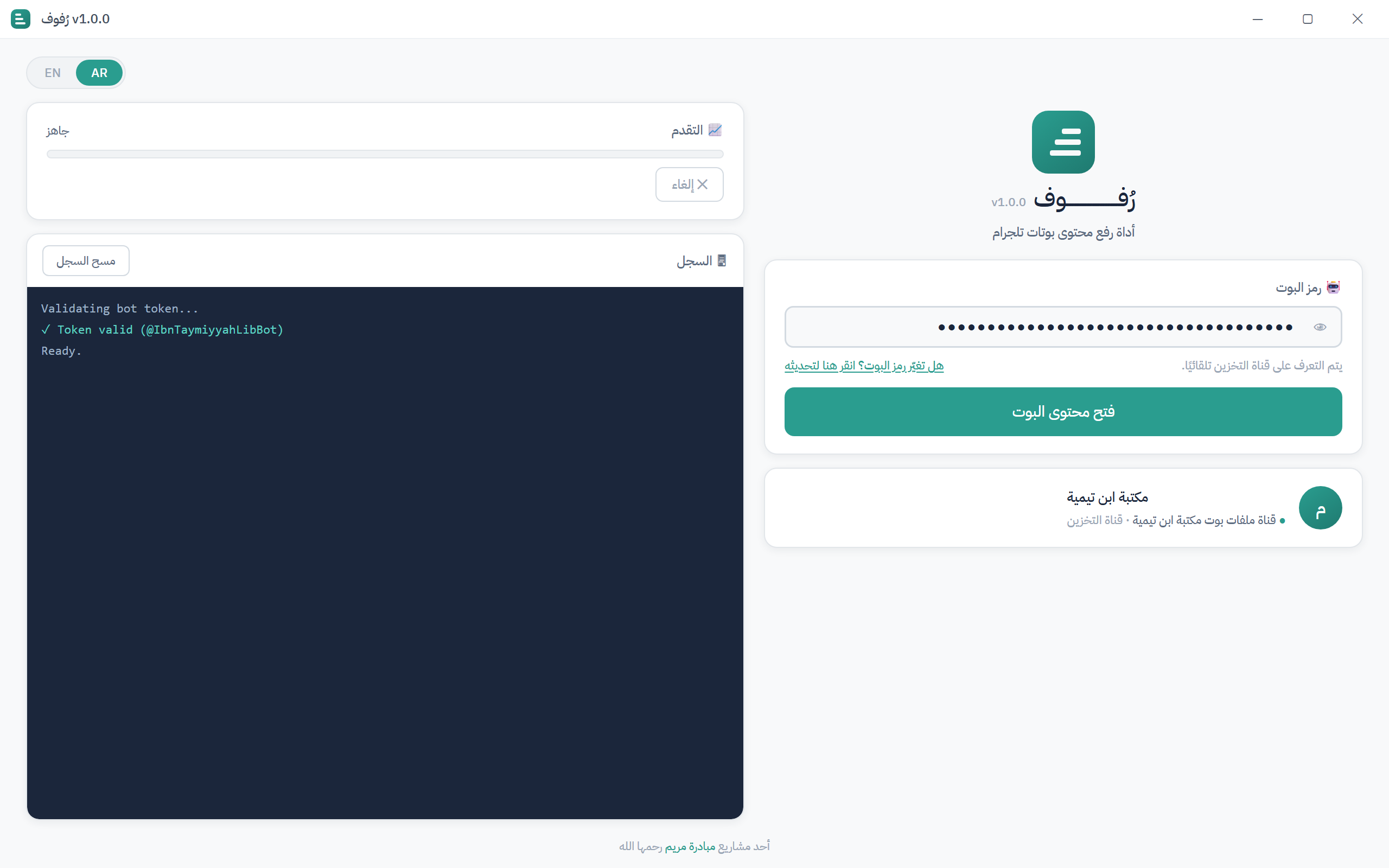
① Bot token — Paste your bot's token here. To reveal what you typed, click the 👁 eye icon. As soon as the token is recognized, the app looks up your bot automatically.
② Bot & channel card — Shows the bot it connected to — its name and its storage channel — so you can confirm you're working on the right bot before opening it. If the token can't be reached, you'll see an inline note right under the field.
③ Open bot content — The main button. Click it to open your bot's content (the content viewer), where all uploading and organizing happens.
④ Progress & log — A progress bar and a live log show what the app is doing during an upload or sync. If something goes wrong, it appears here.
⑤ Language toggle — Switch the interface between Arabic and English.
⑥ Settings (⚙) — Opens the app and bot settings. See Customizing Your Bot.
What you can do from here
- Register a new bot happens inside the Telegram Mini App — see Create & Register a Bot.
- Upload and sync a folder of files — see Uploading & Syncing.
- Add, remove, rename, move, and reorder content in the viewer you open with Open bot content — see Managing Your Content.
Lost access to your bot's token?
If your token was revoked or leaked, the setup screen has a link to help you reconnect with a fresh token. You can also reveal or rotate your token from the Mini App.