Organizing Your Content
15. Organizing Your Content (Mini App)
The Mini App gives you a full content organizer right inside Telegram. It shows the same folders and files your users see, and any change you make here appears in your bot's menu (and in the desktop app) as soon as you save.
Open a bot from the dashboard to reach its organize view.
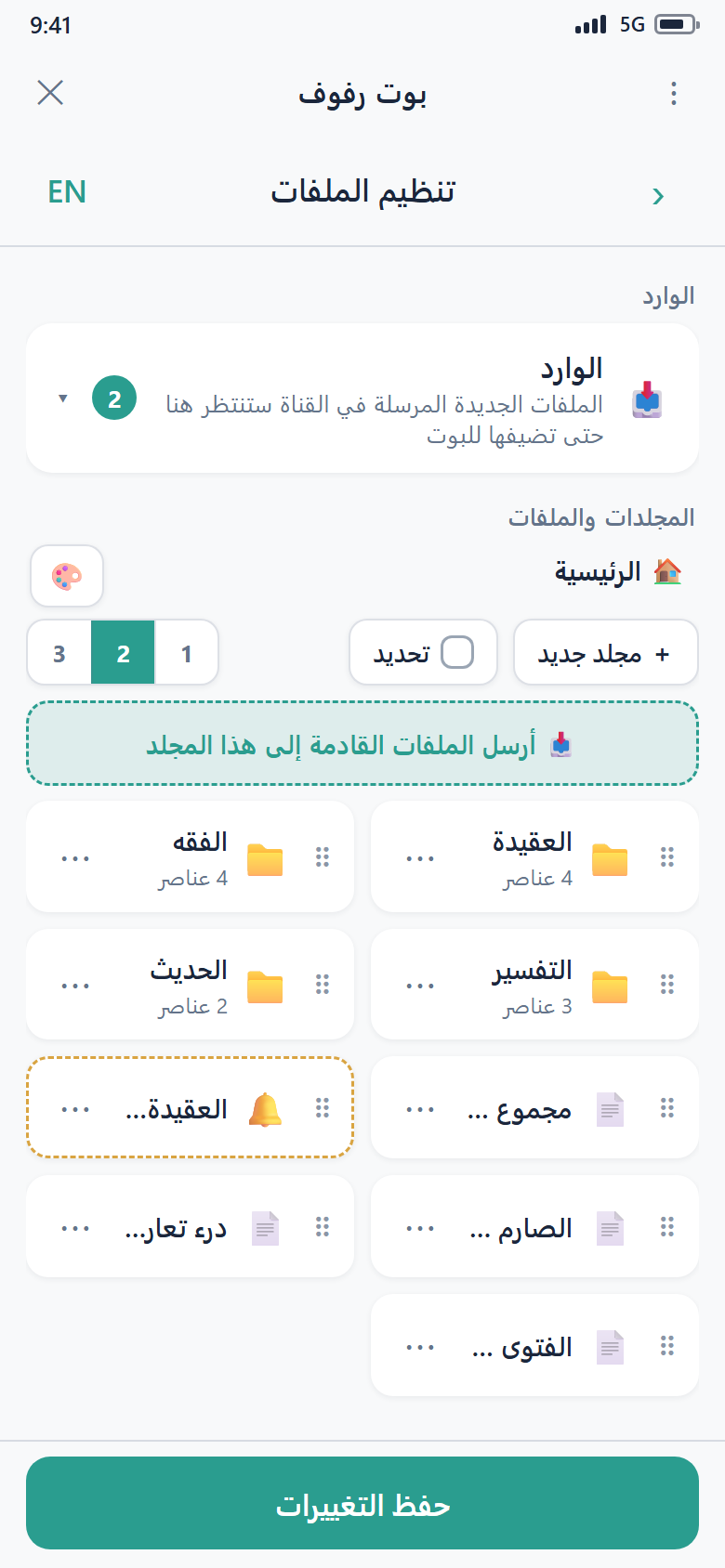
Finding your way around
- Breadcrumb at the top shows where you are (for example Home › Courses › Level 1). Tap any part to jump back to that level.
- Open a folder by tapping it; use the breadcrumb to go back up.
- Columns — a control lets you choose how many columns the grid uses (1, 2, or 3). This is exactly how your bot's menu will lay out its buttons, so what you see is what your users get.
- Color legend (🎨) — tiles are outlined in different colors to show their state. Tap the legend to see what each color means (for example a newly added item, an auto-send file, or an item that needs your attention before you can save).
Reordering by dragging
Press and drag a tile to move it to a new position. The other tiles shift to make room, and the new order is exactly the order your users will see. You can also reorder using Move up / Move down in a tile's menu (see below).
A tile's menu (⋯)
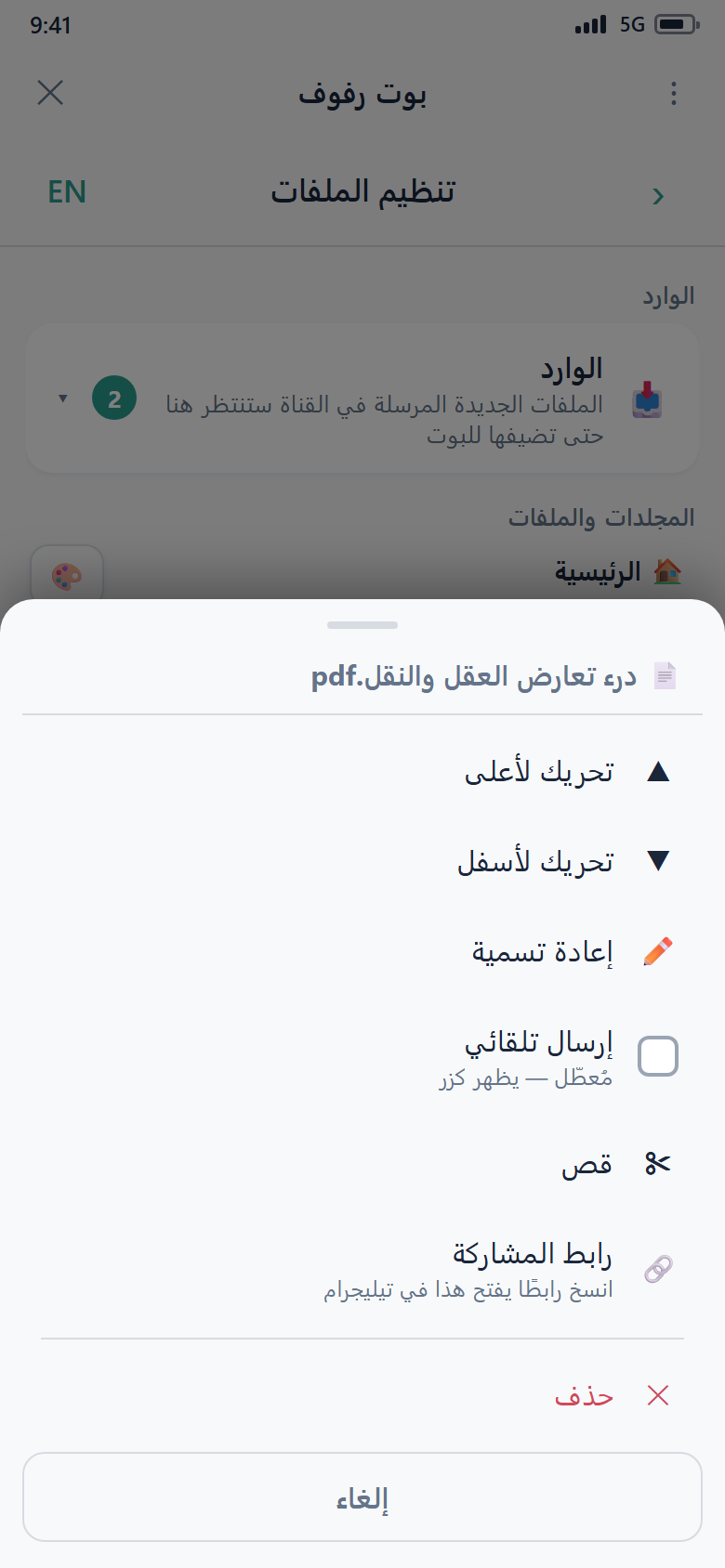
Tap the ⋯ (or long-press a tile) to open its menu. Depending on whether it's a file or a folder, you can:
- Rename — change how it appears in the menu.
- Move up / Move down — nudge its position.
- Move — cut it and paste it into another folder (see Moving items below).
- Delete — remove it (you'll be asked to confirm).
- Auto-send (no button) — files only. Turn this on to make the file send automatically when a user opens the folder, instead of showing as a button they must tap. See the tip below.
Auto-send files
An auto-send file has no button — the bot delivers it the moment a user opens the folder it's in. This is great for a welcome pack or a set of lecture PDFs that should all arrive at once. You can turn auto-send on or off any time from the tile menu.
Selecting several items at once
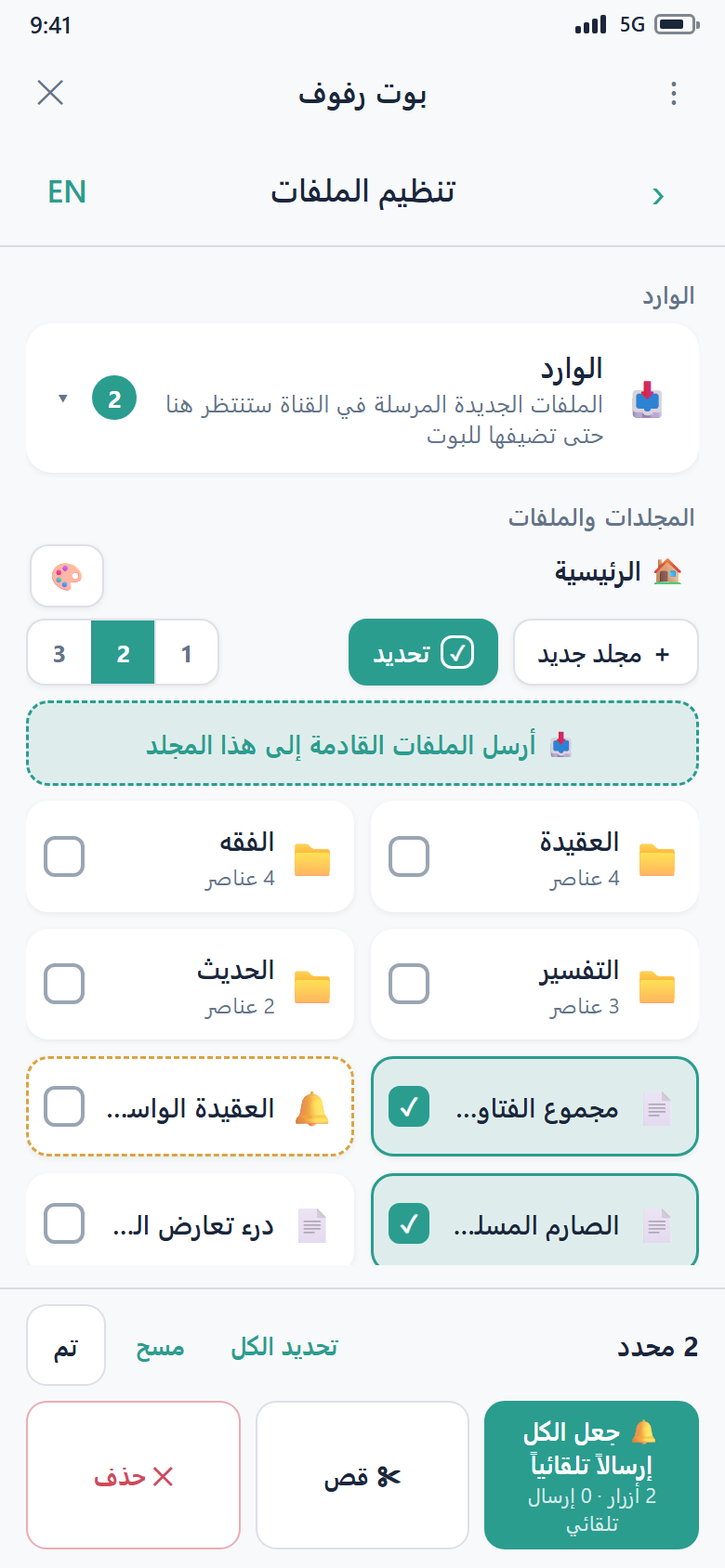
Turn on selection mode to act on many items together. Checkboxes appear on the tiles; tap the ones you want, then use the bottom bar to:
- Move the selected items into another folder,
- toggle auto-send on the selected files, or
- Delete the selected items.
Moving items
Choose Move on a tile (or select several and choose Move). The items are held on a small clipboard, shown as a pill at the bottom. Open the destination folder and paste them there. You can keep navigating while items are on the clipboard, and cancel the move if you change your mind.
Text notes
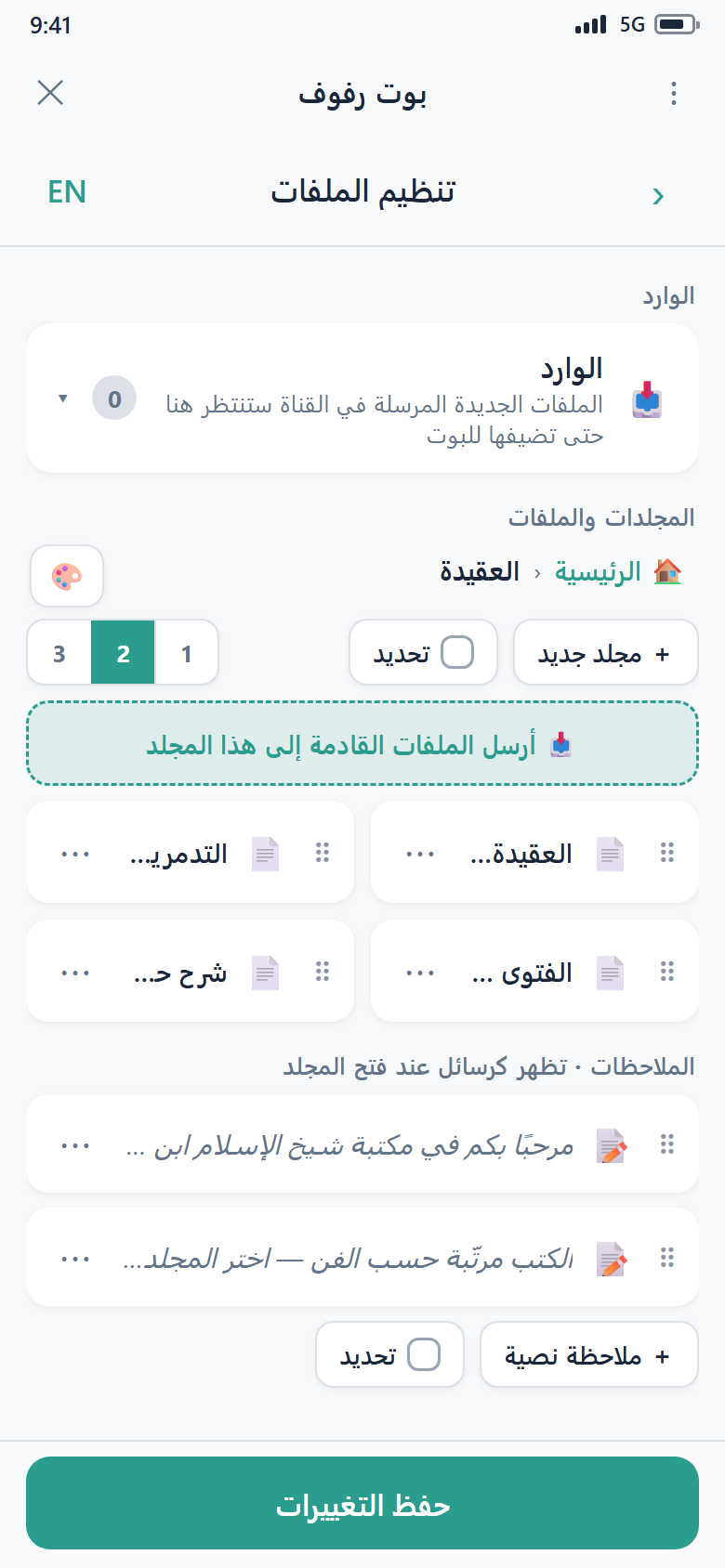
A folder can show one or more text notes to users when they open it — handy for a description, an announcement, or instructions. Add a note in the folder's notes area; you can add several notes per folder, and they are shown in the order you arrange them. Clear a note's text to remove it.
Share links
Every folder and file can have a direct share link. Share it with anyone: when they tap it, your bot opens and takes them straight to that folder or file — no menu navigation needed.
- File link — opens the bot and sends that specific file.
- Folder link — opens the bot inside that folder.
You can copy a link from an item's menu, and regenerate a folder's link if you ever want the old one to stop working.
Very long folder paths
Folder links have a length limit set by Telegram. A very deep or long folder path may not offer a link. Files always have a link.
Saving your changes
Your edits are collected until you Save. A small gold dot on the Save button reminds you when you have unsaved changes. Tap Save to apply everything at once — the bot's menu updates immediately.
Someone else is editing
To protect your work, only one person can edit a bot's content at a time. If a collaborator (or you, on another device) is organizing the same bot, you'll be told it's being edited and asked to try again shortly. This prevents two people from overwriting each other.
Bot settings in the Mini App
Open a bot and go to its settings to control:
- Who can use the bot (visibility) — Public (anyone), Whitelist (only people you approve, added by
@username/ID or by an entire channel's members), or Private (only you). - Custom messages — the welcome, offline, unauthorized, invalid-input, and menu-header texts your bot shows.
- Your bot token — reveal it or rotate it if it was leaked.
These are the same settings available in the desktop app — see Customizing Your Bot for what each option means.