Uploading & Syncing
9. Uploading & Syncing Your Files
Sync keeps your bot in step with a folder on your computer. Point it at a folder and Rufoof makes your bot match it — uploading new files, replacing changed ones, removing deleted ones, and following files you moved.
This is also how you do the first bulk upload for a freshly registered bot: sync your whole folder once, and everything lands in the bot.
Sync is smart
Rufoof compares your folder with what's already in the bot and only uploads what's new or changed. Unchanged files are left alone, so repeat syncs are quick.
Sync your whole bot
Step 9.1 — On the setup screen, enter your bot token and click Open bot content.
Step 9.2 — You start at Home (the top level of your bot). Start a sync from the toolbar's 🔄 Sync button, or right-click an empty area of the grid and choose Sync.
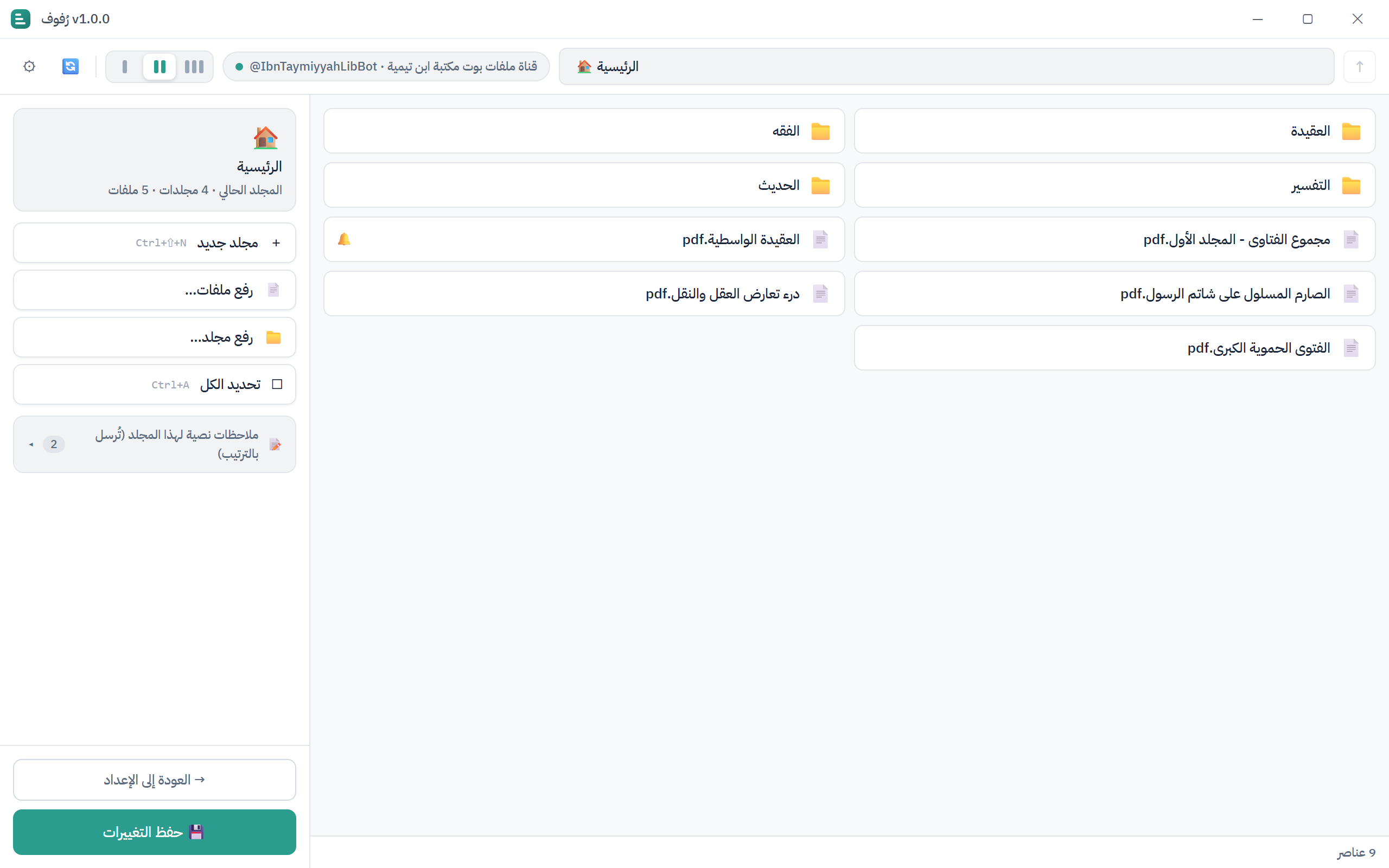
Step 9.3 — Choose the folder on your computer to sync from, and confirm.
Rufoof will:
- Scan your folder.
- Compare it to what's currently in the bot.
- Upload new and changed files.
- Remove files that no longer exist in your folder.
- Follow files you moved or renamed folders.
- Update the bot's menu automatically.
When it finishes, a message confirms the sync and you return to the setup screen.
Sync just one folder
You don't have to sync the whole bot every time. Open any folder inside the content viewer, then start a sync from there — Rufoof only touches that folder and its subfolders, matching them to the matching folder on your computer. Everything outside that folder is left exactly as it is.
This is handy when you maintain one section at a time and don't want a full re-scan.
Large files
If your folder contains files over 50 MB, Rufoof asks what to do with each after you confirm the sync. See Large Files.
Someone else is editing
If a collaborator (or you on another device / in the Mini App) is editing the same bot, the sync waits rather than overwriting their work. Try again once they're done.