Skip to content

Customize Your Bot

10. Customizing Your Bot

The ⚙ Customize Bot button (at the bottom of the Rufoof window) opens a panel where you can control how your bot looks and who can access it.

You only need your bot token to open the customization panel — no folder selection required.

⚙ Customize Bot button highlighted at the bottom of Rufoof

Enter your bot token in the token field (in any mode), then click ⚙ Customize Bot. A dialog will open with three tabs.


10.1 Button Order Tab

This tab lets you control the order of the buttons in your bot's menus, and how many buttons appear per row.

Changing the order:

The current buttons for the selected folder path are shown as a list. Drag and drop them into any order you prefer. That order will be what your users see in the bot.

Changing the number of columns:

Use the Columns per row spinner to set how many buttons appear in each row of the keyboard (1, 2, or 3). More columns means more buttons per row, which is more compact but may be harder to read if button names are long.

Navigating to different folder paths:

Use the folder path dropdown at the top to switch between different levels of your bot (e.g., the root menu vs. a subfolder). Each path can have its own independent button order and column setting.

Deep links — sharing direct access to files and folders:

Each button in the grid shows a small 🔗 badge in its corner. Clicking this badge copies a direct link for that specific file or folder to your clipboard. You can share this link with anyone — when they tap it, it opens your bot in Telegram and takes them straight to that file or folder, skipping the menu navigation entirely.

  • File links open the bot and immediately send that specific file to the user.
  • Folder links open the bot and navigate directly into that subfolder.

Info

Folder deep links have a character limit imposed by Telegram. If a folder path is very long or deeply nested, its link badge may not appear (the path encodes to more than 64 characters). Files always have a link badge regardless of depth.

Button Order tab showing a grid of draggable buttons

When you are done adjusting, click Save All Changes to apply.


10.2 Visibility Tab

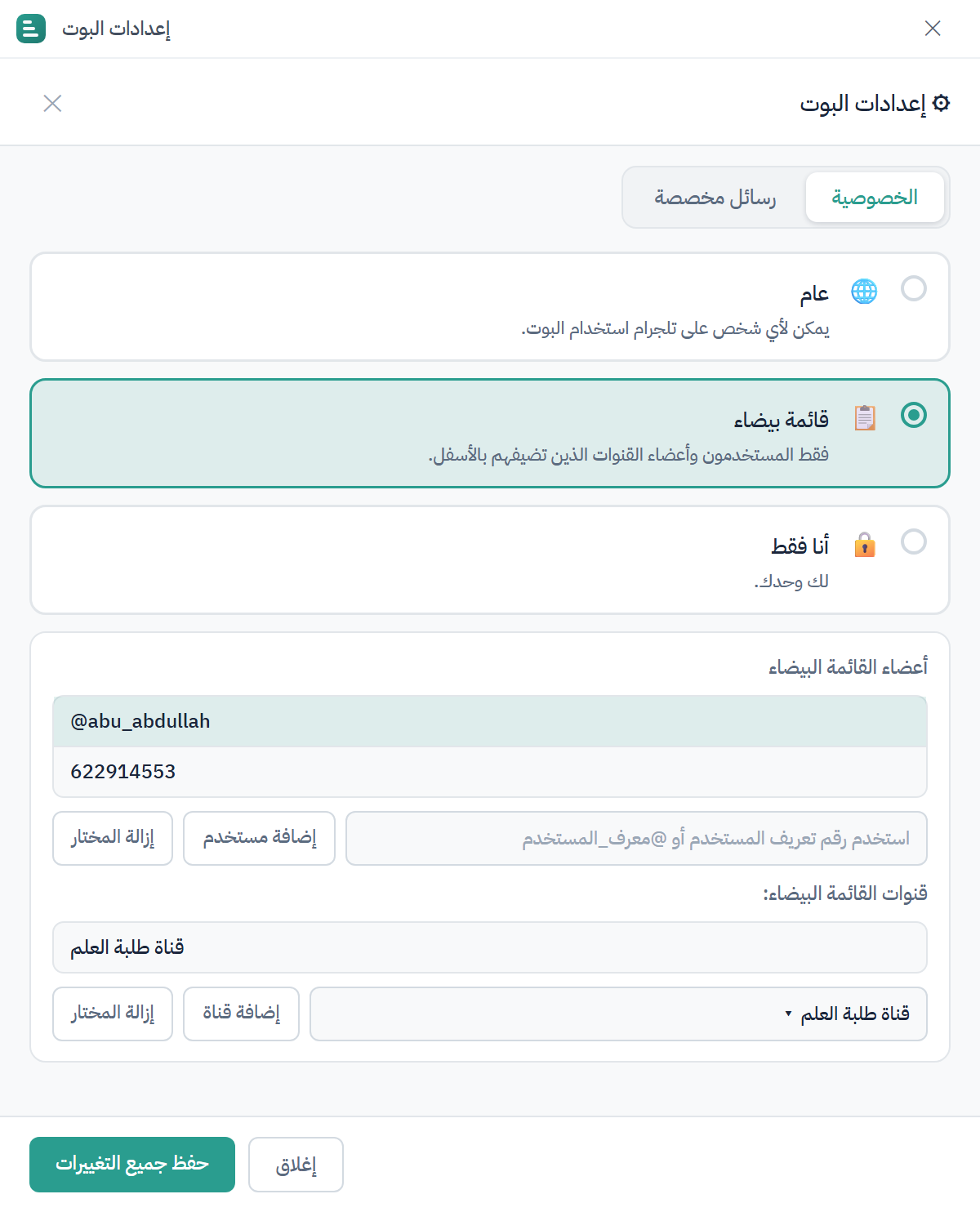
This tab controls who can use your bot. There are three options:

Public — Anyone who starts your bot can use it. No restrictions.

Whitelist — Only specific people you approve can use the bot. Everyone else gets an "Unauthorized" message. This mode shows two sub-lists: - Whitelist Users: Add individual users by their Telegram username (@username) or their numeric user ID. They will have access. - Whitelist Channels: Add a Telegram channel. Any member of that channel will automatically have access to your bot. This is useful if you want to grant access to an entire community without adding each person individually.

Private — Your bot is completely closed. Only you (the bot owner) can use it. Useful for testing or while you are still setting things up.

Adding a user to the whitelist:

Type their @username or numeric user ID in the input box and click Add User.

Adding a channel to the whitelist:

Click Add Channel and select from the list of channels where your bot is an admin.

Visibility tab with the three radio buttons and the whitelist section

Click Save All Changes at the bottom when done.


10.3 Custom Messages Tab

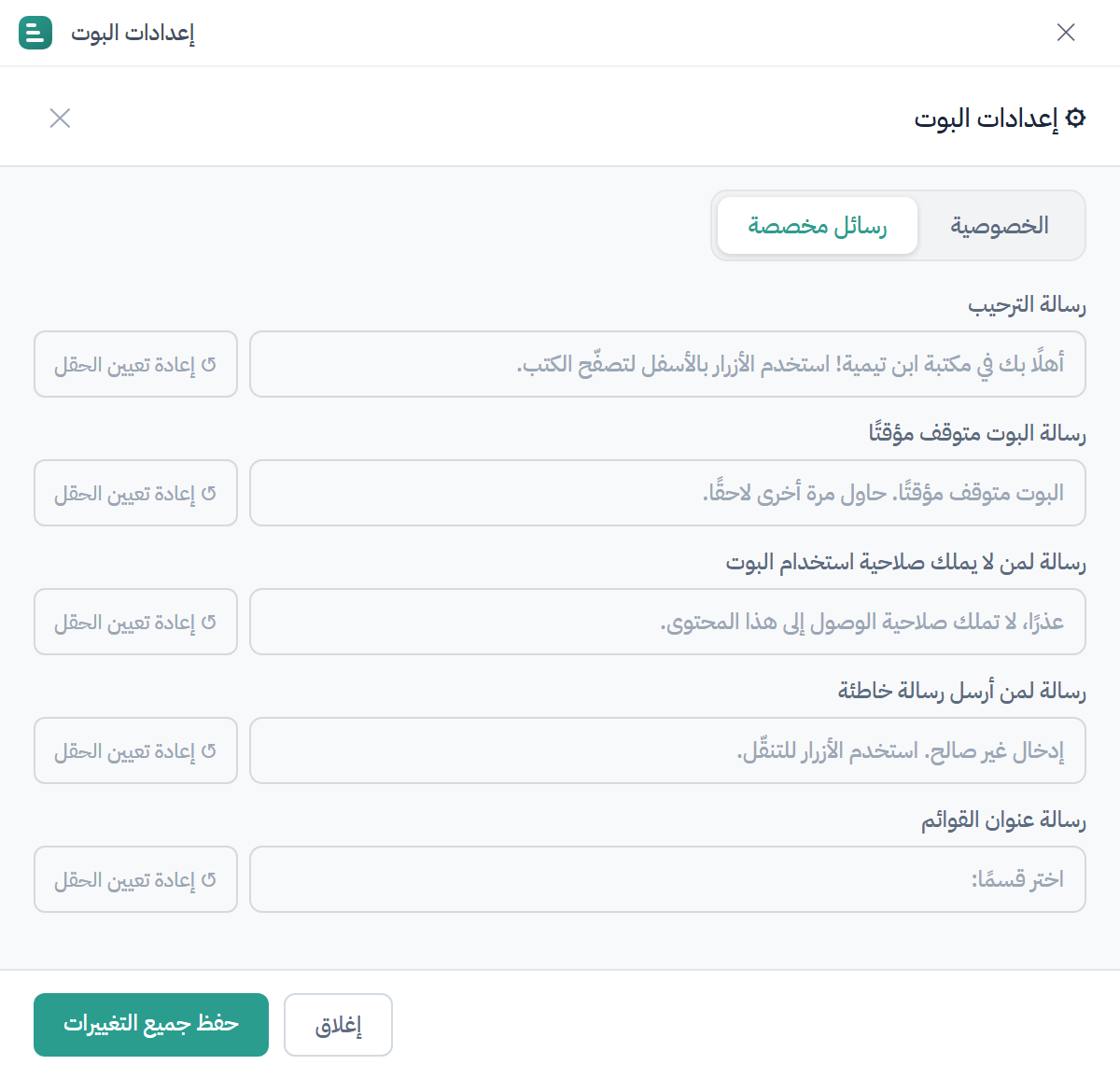
This tab lets you change the text messages your bot sends to users in specific situations. Everything here is optional — if you leave a field empty, the bot's default message will be used.

Custom Messages tab with the five message fields

Field When it is sent
Welcome Message When a user starts your bot for the first time (/start).
Offline Message When your bot is set to Offline mode and a user tries to use it.
Unauthorized Message When a user who is not on the whitelist tries to use a private or whitelist-only bot.
Invalid Input Message When a user sends a message or command that the bot does not recognize.
Menu Header The text shown at the top of every menu. You can use {folder} inside this text and it will be replaced with the current folder name.

Click Reset next to any field to restore it to the default value.

Click Save All Changes at the bottom when done.


Lost your bot token or need to change it?

If your token was revoked, leaked, or needs to be updated for any reason, contact Mariam Initiative support at t.me/blessed_tree — they will guide you through the process.