Owner Commands
11. Bot Owner Commands
After your bot is approved and live, you can control it directly by sending commands to it through Telegram — just open your bot in Telegram (the same bot your users use) and type the command. These commands are owner-only: if anyone else tries to send them, the bot will silently refuse with a lock message.
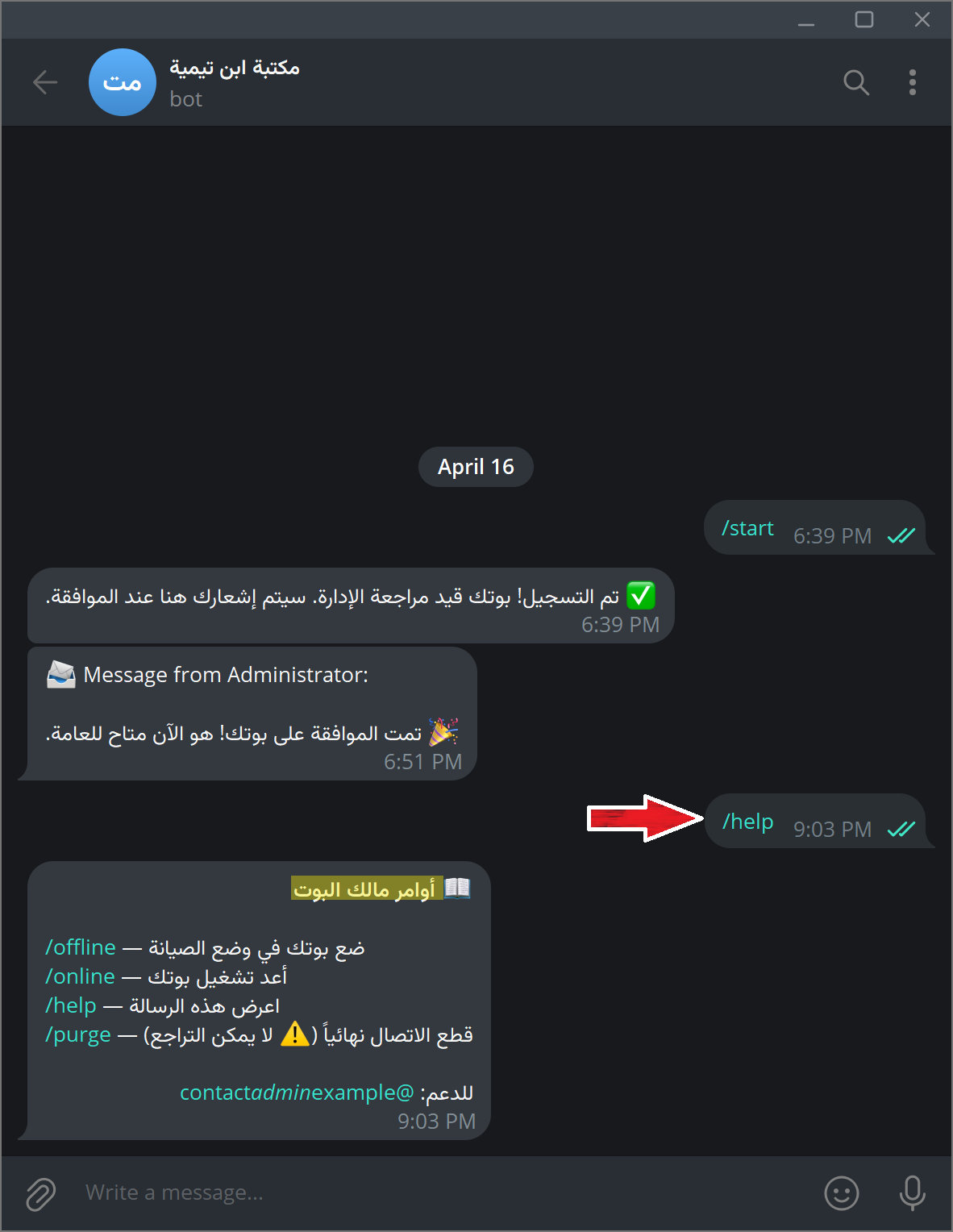
/help — View All Available Commands
Send /help to your bot to get a reminder of all owner commands and what they do.
/offline — Put Your Bot in Maintenance Mode
Send /offline to immediately pause your bot for all users. While offline:
- End users who try to use the bot will receive your Offline Message (which you can customize in Settings → Custom Messages).
- You (the owner) can still use the bot normally — you are exempt from the offline restriction.
The bot will confirm with: "✅ Your bot is now offline. End users will see a maintenance message."
Use this when you are updating your files and do not want users interacting with an incomplete version.
/online — Bring Your Bot Back Online
Send /online to lift the maintenance mode and restore access for all users.
The bot will confirm with: "✅ Your bot is back online."
/purge — Permanently Disconnect Your Bot
This is irreversible. Read carefully before using.
Send /purge if you want to permanently shut down your bot and remove it from the system entirely. This is a two-step process to prevent accidental use:
First /purge: The bot sends a warning message explaining what will happen and asks you to confirm:
"⚠️ Are you sure you want to permanently disconnect this bot? This will: • Immediately cut off all end-user access • Remove this bot from the system (irreversible) • Your Telegram channel files are not deleted
Send /purge again within 2 minutes to confirm."
Second /purge (within 2 minutes): The bot confirms the disconnection and shuts itself down immediately. All users lose access at once. Your files in the Telegram channel are not deleted — only the bot's registration in the system is removed.
If you ever want to bring the bot back after a purge, you will need to register it again inside Telegram (Create & Register a Bot).
Info
If you do nothing after the first /purge, the confirmation window expires after 2 minutes and nothing happens. Your bot continues running normally.