Working Together
17. Working Together (Collaboration)
You don't have to build your library alone. You can invite other people to help organize your bot — they can add and arrange files, while you keep control of the sensitive settings.
This is ideal for a team: several people can contribute files and keep folders tidy, while only you (the owner) can change the bot's token, its channel, its settings, or submit it for approval.
What collaborators can and can't do
Collaborators can:
- Add files through the Inbox and file them into folders.
- Create folders, rename, reorder, move, and delete content.
- Add and edit text notes.
- Use capture mode.
Collaborators cannot:
- Change the bot's settings, token, or storage channel.
- Submit the bot for approval.
- Add or remove other collaborators.
Inviting someone
Step 17.1 — Open your bot in the Mini App and go to its collaboration section.
Step 17.2 — Create an invite link and send it to the person you want to add.
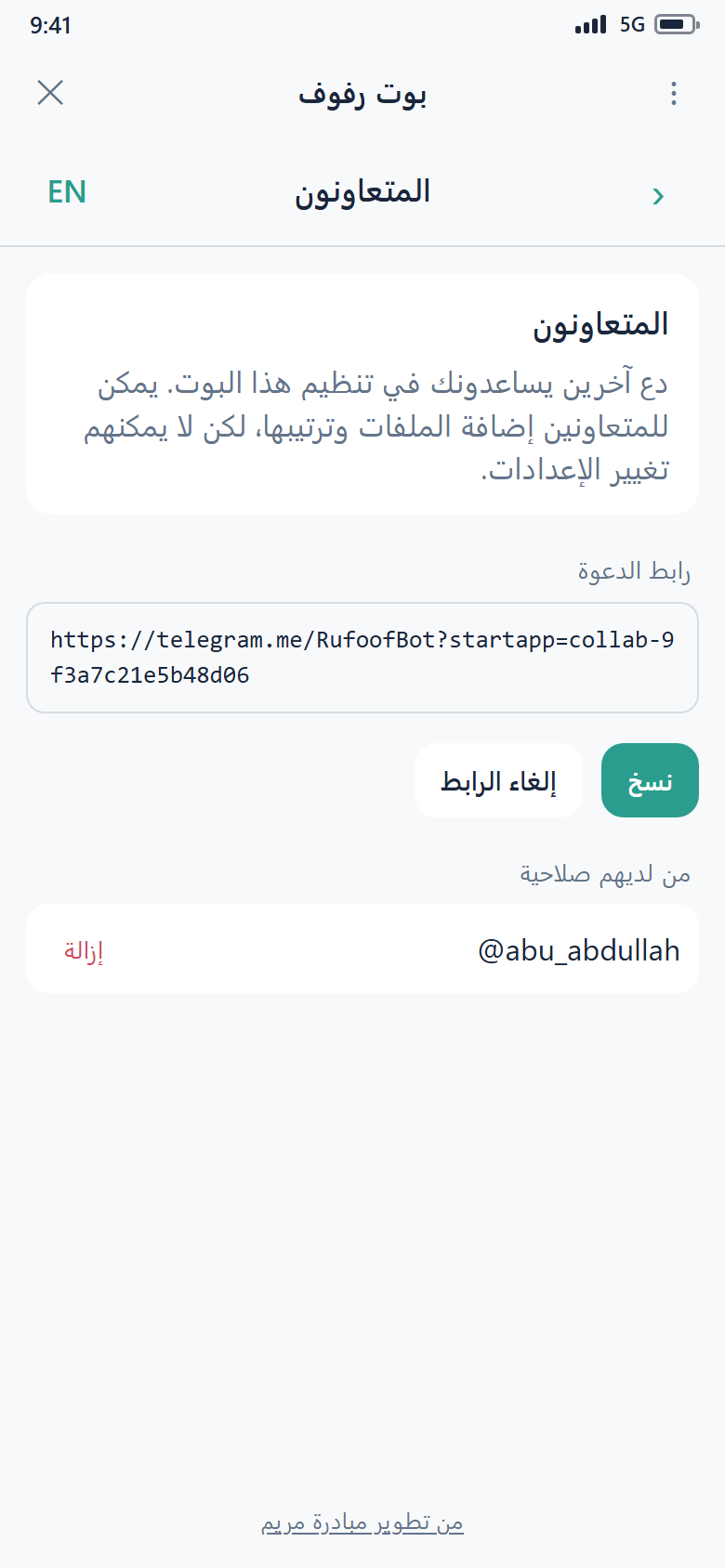
Step 17.3 — When they open the link in Telegram, the Mini App opens and lets them accept. After that, your bot appears on their dashboard and they can start organizing.
One active invite link at a time
Creating a new invite link replaces the previous one. You can regenerate the link whenever you want to invalidate an old invitation.
Invite people you trust
Collaborators can add and delete content. Only share the invite link with people you want helping with your bot, and remove a collaborator from the collaboration section if they should no longer have access.
The bot must be registered first
You can invite collaborators once the bot has been submitted for approval — a brand-new, unsubmitted bot has nothing to collaborate on yet.