Large Files
Large Files
Telegram's limit for a bot is 50 MB per file. When you save (or sync) and Rufoof finds a file bigger than that, it asks you what to do — you decide for each large file, every time. Nothing large is ever uploaded without your say-so.
The large-file prompt
After you click Save, if there are any files over 50 MB, a dialog appears listing them with four choices:
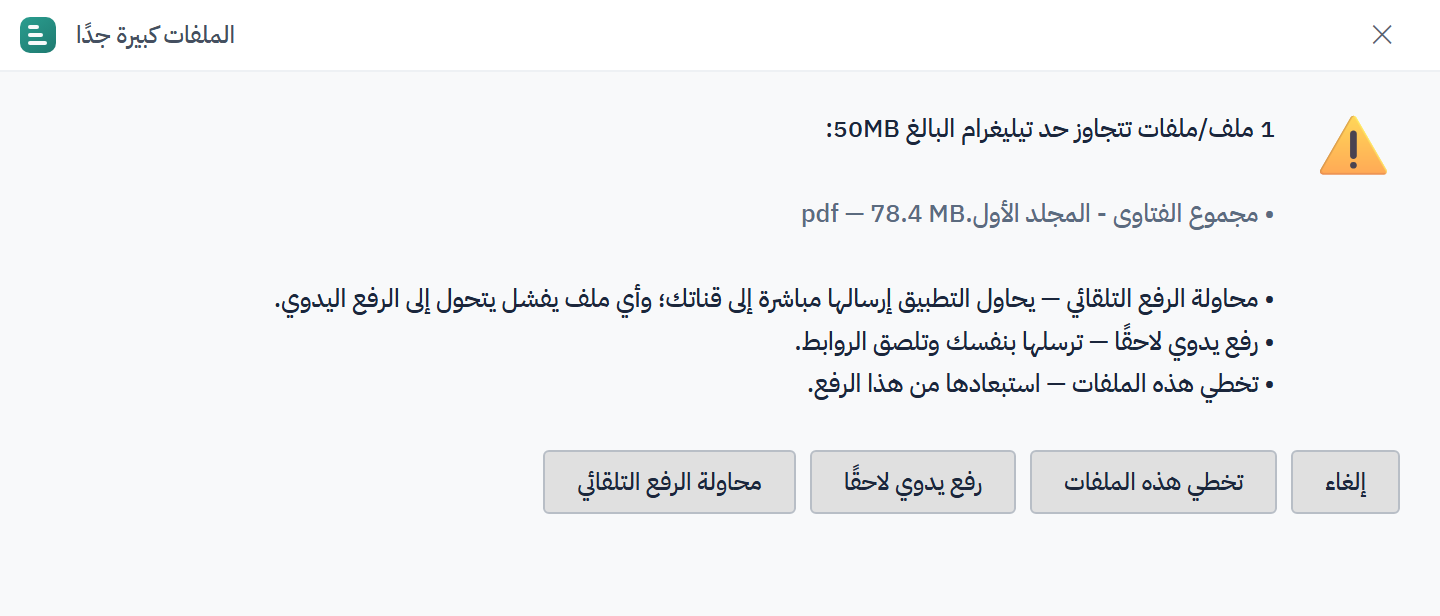
- Upload automatically — Rufoof uploads the file directly to Telegram for you, with no extra steps. This is the easiest option.
- Upload manually — you upload the file to your storage channel yourself, then paste the message link back so the bot can serve it. Use this if the automatic upload doesn't work.
- Skip — leave the file out for now; the rest of your changes still save.
- Cancel — stop and change nothing.
You'll see this prompt whenever a large file is involved.
Large uploads take time
A big upload depends on your internet speed. Keep the app open until the log shows it finished. If your connection drops, save or sync again — Rufoof skips what already uploaded and retries the rest.