Channel Inbox & Capture
16. Channel Inbox, Capture & Listen
A powerful way to add files: just post them into your storage channel. Rufoof notices new posts in your channel and stages them in an Inbox, ready for you to drop into any folder — no re-uploading through an app.
This is perfect for adding files from your phone, forwarding files from other chats, or letting your channel be the place you collect content over time.
The Inbox
Step 16.1 — Post or forward a file into your bot's storage channel.
Step 16.2 — Open the bot in the Mini App and open its Inbox. New posts appear there.
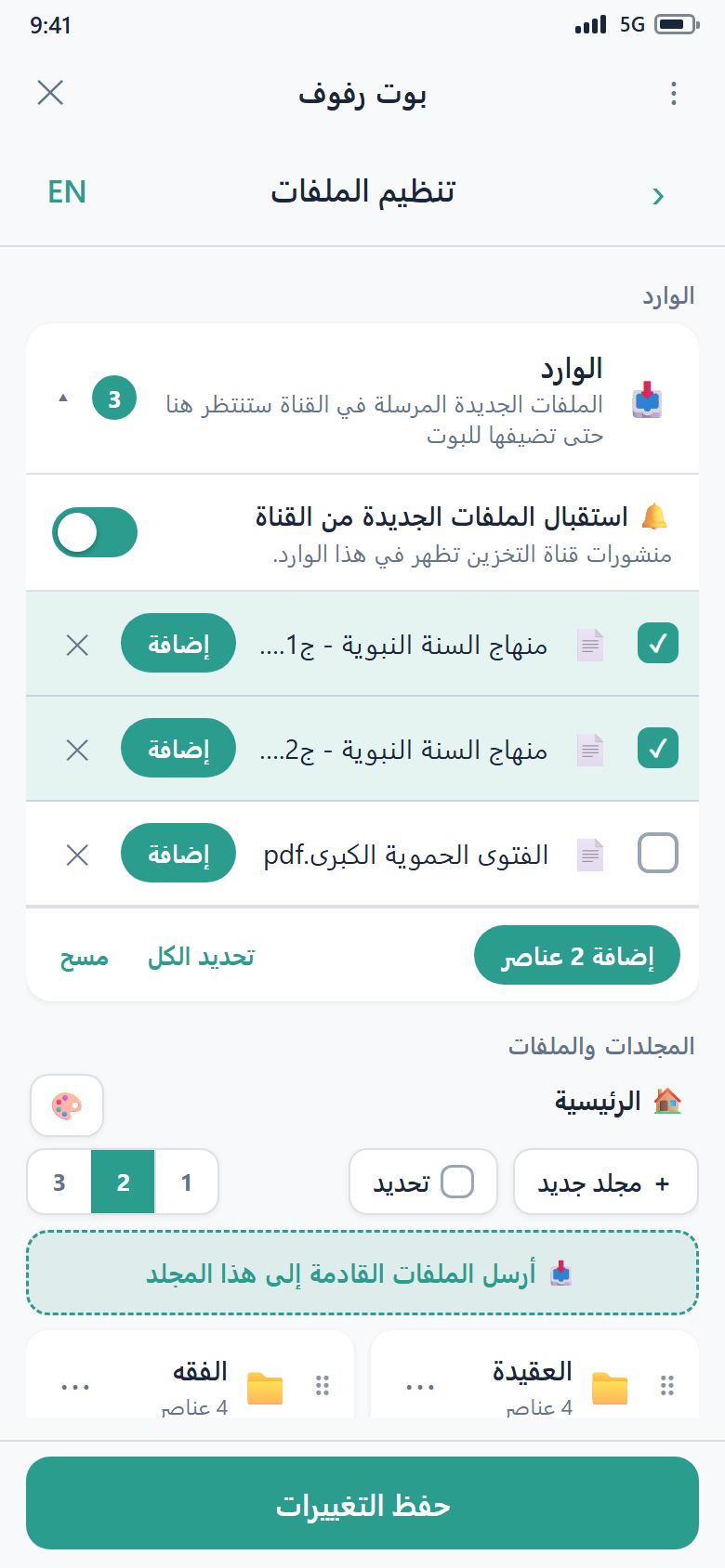
Step 16.3 — For each item, choose File it (or select several and file them together), then pick the folder to put it in. It joins your content like any other file and shows up in your bot's menu after you save.
Files you already uploaded won't clutter the Inbox
A file you uploaded through the desktop app also passes through your channel, but Rufoof knows it's already filed, so it won't show up in the Inbox again.
Capture mode — send new files straight to a folder
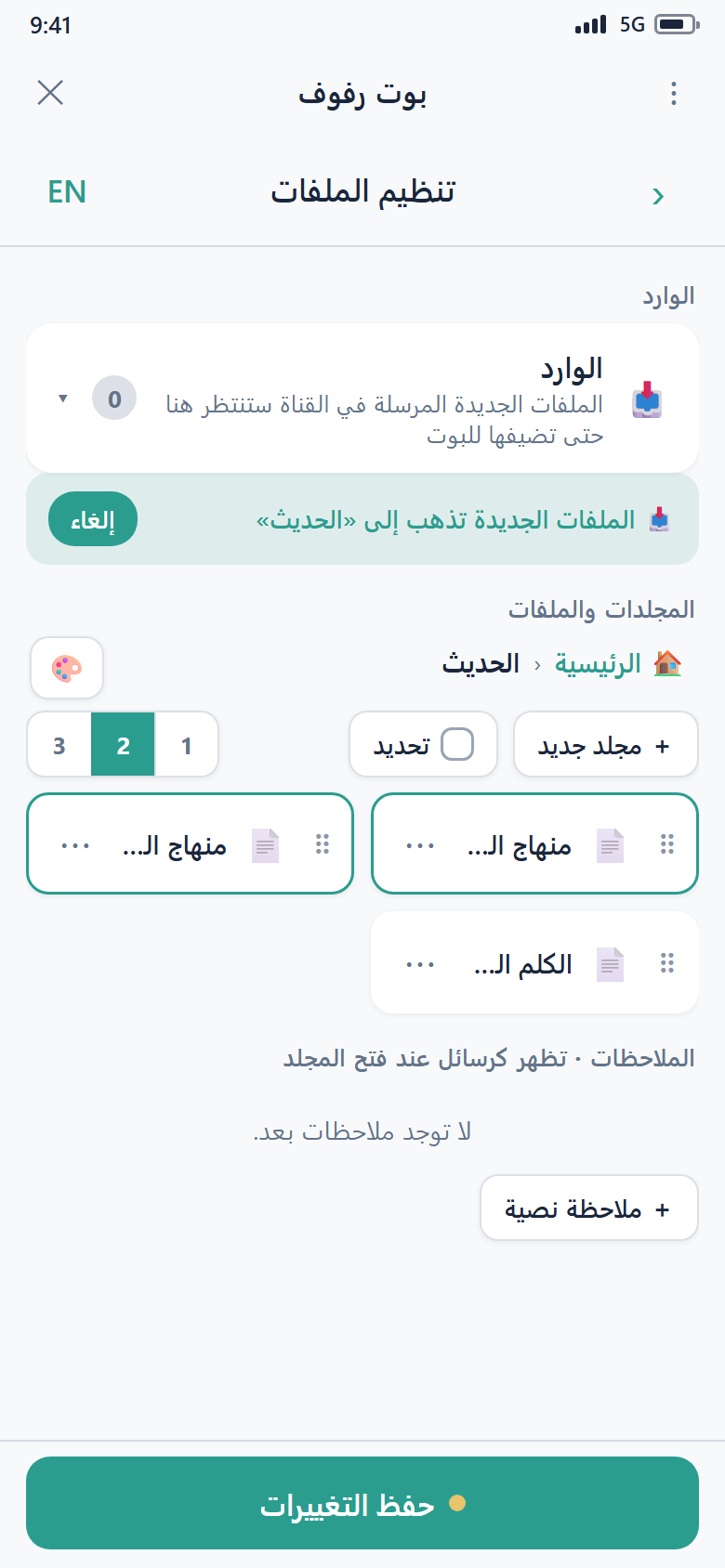
If you're about to post a batch of files that all belong in one folder, turn on Capture for that folder first. While capture is on, everything new posted to the channel is automatically assigned to that folder — you don't have to file them one by one.
A banner reminds you capture is on, and you can turn it off at any time. Only one folder can be the capture target at a time.
The Listen toggle — receive new files (or not)
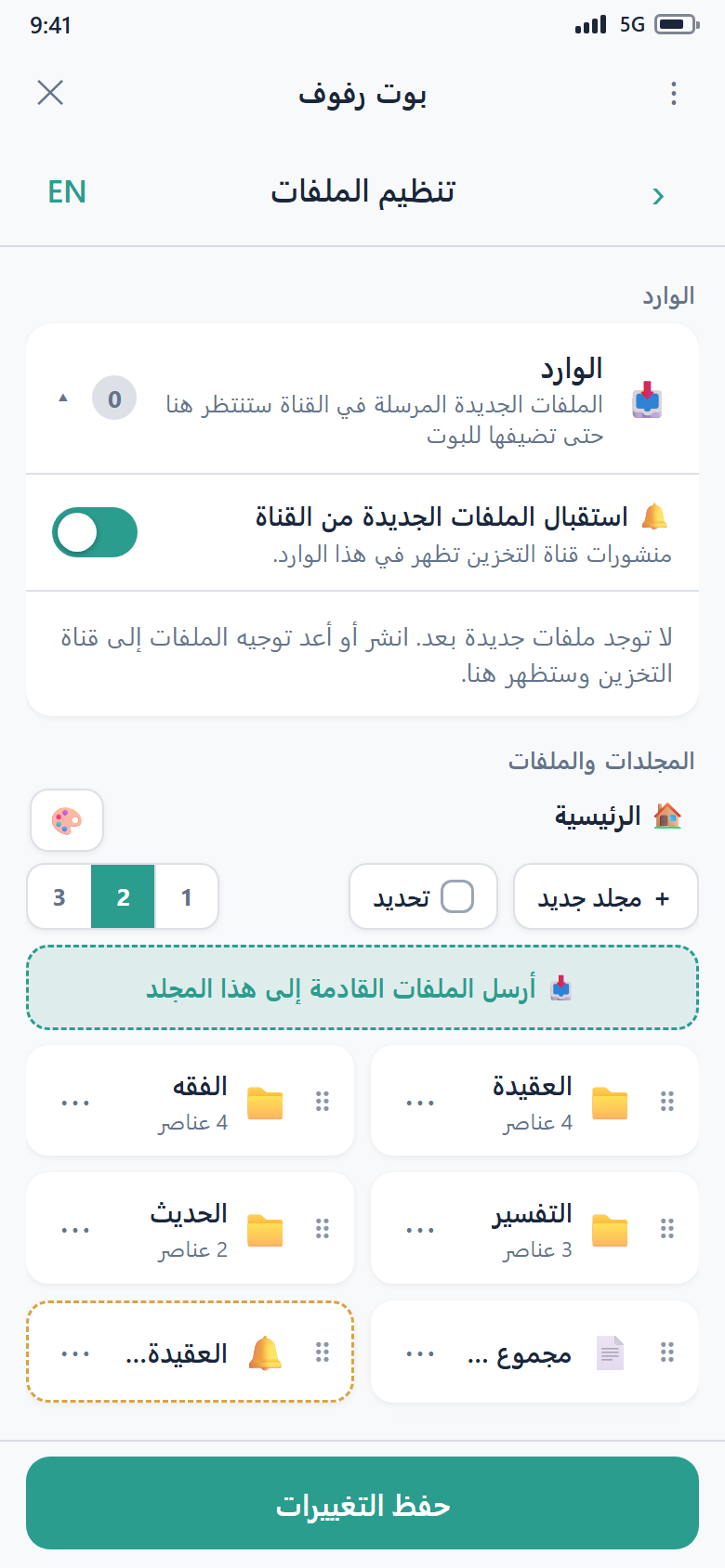
The Receive new files switch (in the Inbox area) controls whether Rufoof watches your channel at all:
- On (default) — posts in your storage channel show up in the Inbox.
- Off — Rufoof ignores everything posted to the channel. Turn this off if you use the channel for other things and don't want those posts treated as bot content.
Managing Inbox items
- File it — put the item into a folder (single or several at once).
- Ignore / remove — drop an item you don't want. It won't come back for that same post.
Deleting a file from the channel
Telegram does not tell bots when a message is deleted from a channel, so removing a post from the channel won't automatically remove it from your Inbox or your bot. Use Ignore to clear an Inbox item you don't want, and delete filed items from the organizer.
Inbox items don't wait forever
Staged Inbox items are cleared automatically after a few days if you don't file them. If that happens, just post the file again — a fresh post stages normally.