Two Ways to Use Rufoof
Two Ways to Use Rufoof
Rufoof gives you two interfaces to the same bot. Whatever you do in one, the other reflects — the folders, files, order, and settings all stay in sync. Use whichever is convenient at the moment.
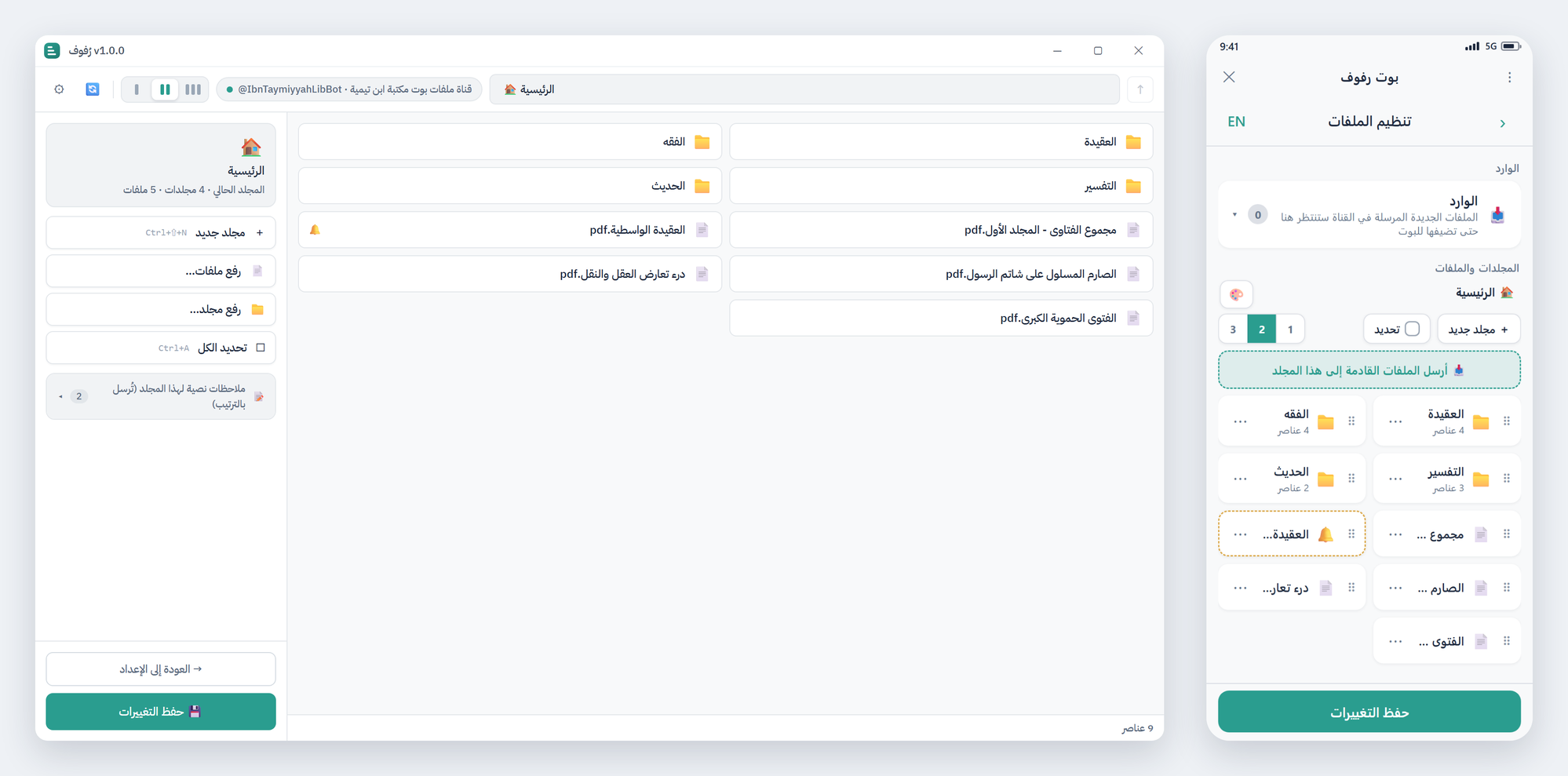
📱 Inside Telegram — the Mini App
Open @RufoofBot in Telegram and everything happens inside a small app window — on your phone or on Telegram for desktop. Nothing to install.
Best for:
- Creating and registering a new bot and connecting its storage channel.
- Organizing content on the go: rename, reorder by dragging, change columns, delete, move several items at once, add text notes, and create share links.
- Adding files you posted into your channel (the Inbox), without re-uploading them.
- Inviting other people to help you organize the bot.
Start here → Opening the Mini App
💻 The Desktop App (Windows / macOS)
Install the Rufoof app on your computer, connect your already-registered bot, and work with all of your files at once.
Best for:
- Uploading a whole folder of files from your computer in one go.
- Large files — the desktop app uploads big files automatically, directly to Telegram.
- Keeping your bot in step with a folder on your computer using Sync.
Start here → The Desktop App
You don't have to choose
Many owners register their bot and do quick edits in the Mini App, and use the desktop app when they have a lot of files or large files to upload. Because both edit the same bot, you can switch freely at any time.