Opening the Mini App
13. Opening the Mini App
The Rufoof Mini App runs inside Telegram — there is nothing to install. You open it from @RufoofBot, and it works the same on your phone and on Telegram for desktop.
Step 13.1 — Tap @RufoofBot to open it in Telegram.
Step 13.2 — Tap Start (or send /start). The first time, @RufoofBot asks you to choose a language — English or العربية. Tap your choice; you can change it later.
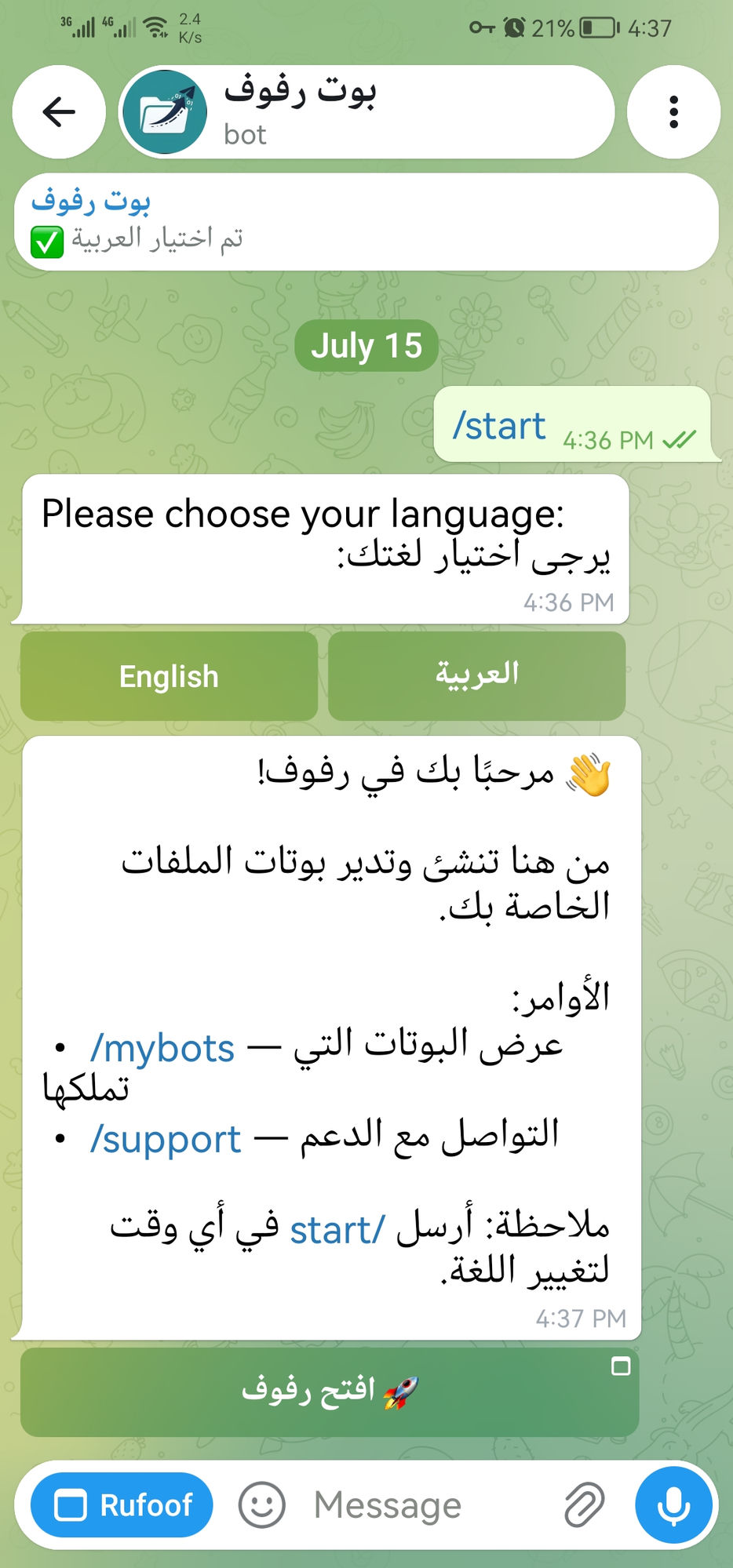
Step 13.3 — Open the Mini App by tapping the app button (the menu button at the bottom of the chat, or the Open button in the bot's menu). The Rufoof dashboard opens right inside Telegram.
The Dashboard
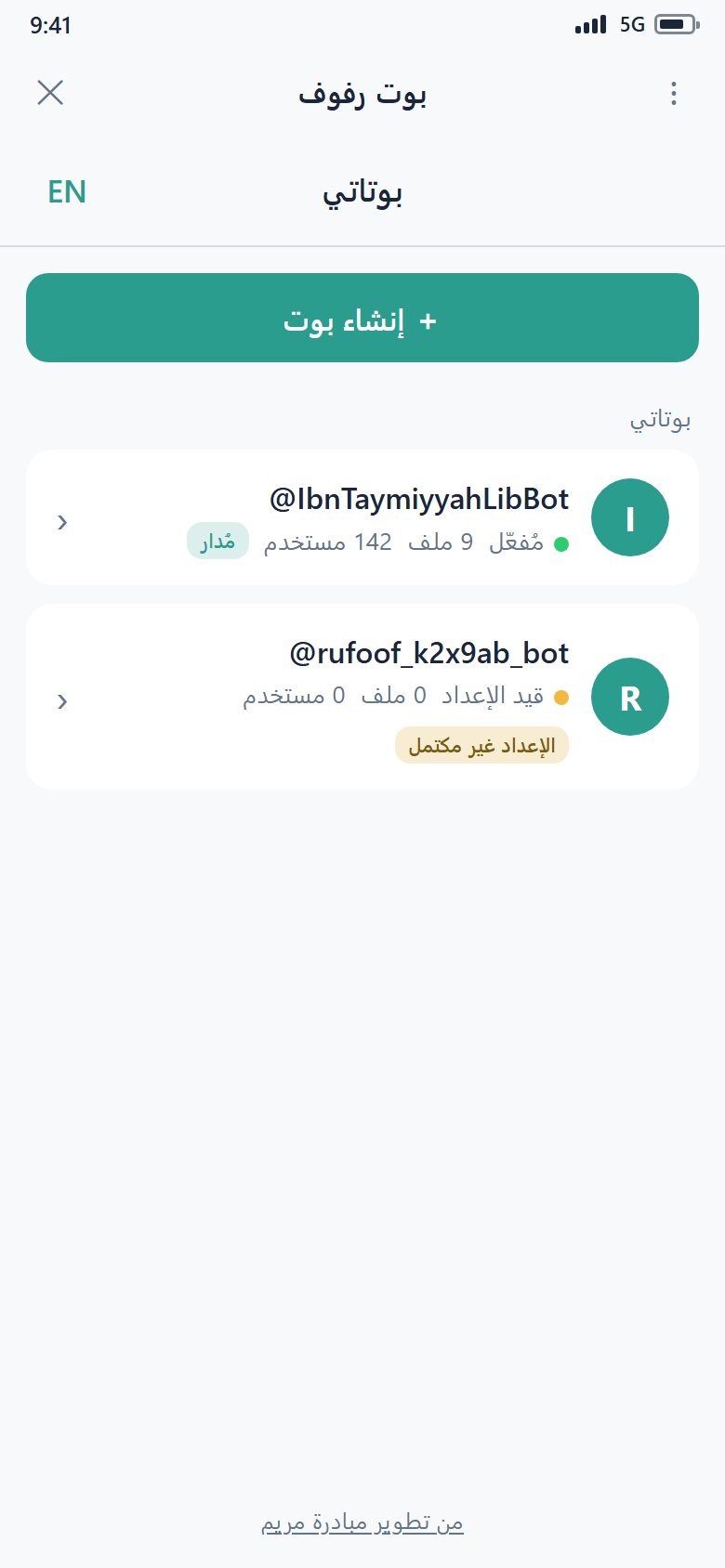
The dashboard is your home screen inside the Mini App. It lists all of your bots, each shown by its name.
From here you can:
- Create a bot — tap + Create a bot to start registering a new one. See Create & Register a Bot.
- Open a bot — tap any bot to manage it: organize its content, review its Inbox, change settings, invite collaborators, and submit it for approval.
It's the same bot everywhere
Anything you change in the Mini App also appears in the desktop app and in your bot's live menu, and vice-versa. You can move between them freely.